Quick Play Deep Dive: Skip the Menus
Quick Play changed how millions of players return to Minecraft. This article explores the feature in depth: mechanics, limitations, and power-user tips.
Why Quick Play Exists
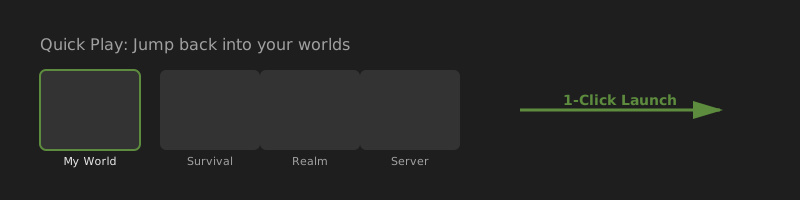
Mojang identified that returning players spent significant time navigating menus before reaching their worlds. Quick Play removes that friction by surfacing recent worlds directly in the launcher: one click from desktop to gameplay.
Technical Requirements
Quick Play isn't a launcher-only feature: it requires game-side support:
- Java Edition 1.20 minimum
- Bedrock Edition 1.20.60 minimum
Worlds played on older versions won't register until you launch them once on a supported version.
Supported World Types
- Local single-player saves
- Multiplayer servers (last joined)
- Realms-hosted worlds
Quick Play does not replace server browsers or Realm management: it shortcuts to worlds you've already accessed.
Pinning and Ordering
Recent play order determines default positions. Pinning overrides this: pinned worlds stay visible regardless of when you last played other worlds. Useful for daily survival worlds or main SMP servers.
When to Disable Quick Play
- You enjoy main menu splash text and seasonal themes
- You frequently browse Marketplace before playing (Bedrock)
- You switch installations often and want explicit control
- Quick Play launches wrong world due to installation mismatch
Toggle: Settings → Quick Play → checkbox.
Quick Play vs. Installations
Quick Play remembers world + installation context. If you mod your game via a Forge installation, Quick Play launches with that installation active. Switch installations before using Quick Play if you need vanilla.
Official Source
Official Quick Play announcement on minecraft.net
Practical guide: How to use Quick Play