
Choose an official source

On Windows 10 or 11, the Store listing is the supported path for the current Minecraft Launcher for Windows. If Store is blocked, or you are on macOS or Linux, use Mojang’s download page instead. Both channels require a Microsoft account to sign in after install.

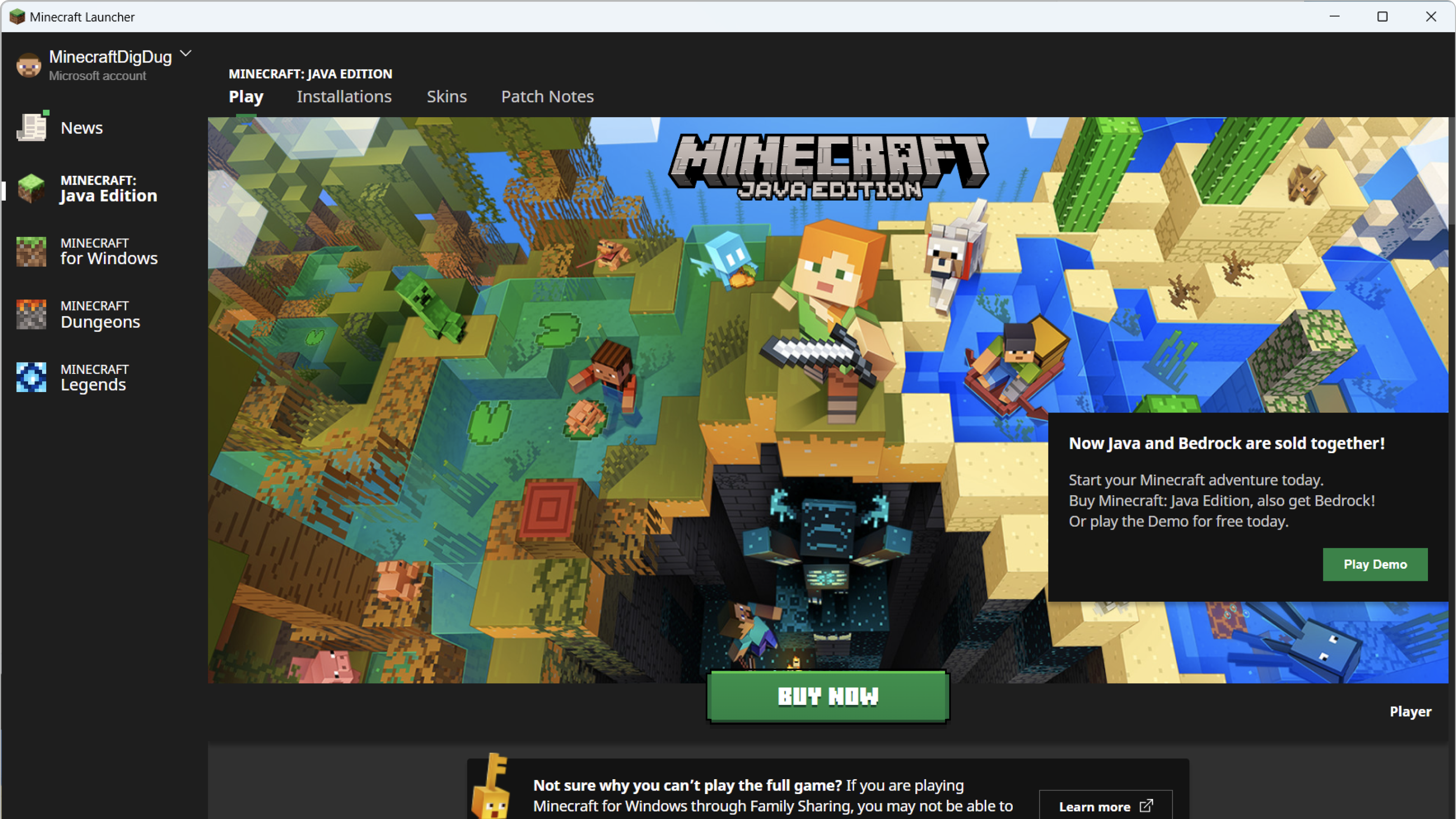
Minecraft Launcher home with Java Edition selected and a Play button

What the launcher is (and is not)

The official launcher is Mojang’s PC hub to sign in, install game files, and start Java Edition, Minecraft for Windows (Bedrock), Dungeons, and Legends when your Microsoft account owns them. Downloading the launcher is free. Owning a game is separate; Play may still ask you to buy if that edition is not on the account.

Which official button should you use?

Use Store if you are on a normal Windows 10 or 11 PC and Store works. Use minecraft.net if Store is missing, stuck, blocked by school or work policy, or you are on macOS or Linux. Do not use a random “Minecraft launcher.exe” from a search ad.

1

Windows, Store available: open the Minecraft Launcher Store listing, confirm publisher Mojang / Microsoft, then Get or Install. The Xbox Store page states this listing is for Windows 10 and 11, and is not supported on Windows 10 in S mode or on ARM devices.

2

macOS, Linux, or Store blocked: open minecraft.net/download and use Mojang’s Download Launcher control. Minecraft Help documents that path as an official install option alongside Store.

3

After the app opens: sign in with the same Microsoft account that owns Minecraft. Then pick a game tab and press Play. The first Play on an edition downloads that game’s files. Official install help: How to download and install the Minecraft Launcher.

Platform limits

Windows 10 and 11

Store launcher can surface Java, Minecraft for Windows, Dungeons, and Legends based on entitlements. S mode and ARM are called out as unsupported on the Store listing.

macOS and Linux

Use minecraft.net. Java Edition is the PC edition that ships on those platforms. Minecraft for Windows (Bedrock) is not a Mac or Linux Store app.

This website

We never attach .exe, .msi, or .dmg files. If a download starts from minecraftlauncher.io, treat it as unexpected and stop.

System requirements: launcher vs game

The launcher is a small app. Playable FPS, RAM, and GPU needs belong to the edition you launch. Mojang updates those numbers. We do not keep a copied spec sheet here because it goes stale and then misleads buyers.

Check the current Java and Bedrock tables on Mojang’s own pages before you buy hardware. If the launcher installs but a game will not start, that is usually a game, GPU, or profile problem, not a missing “launcher RAM” setting. See the install and reinstall guide for backups, and game won’t launch if Play does nothing.

Safety checks before you click

  • Publisher should be Mojang / Microsoft, not a lookalike name.
  • URL should be xbox.com / microsoft.com Store, or minecraft.net. Not a shorten.er dump of “setup.exe”.
  • The launcher does not bypass paying for Minecraft. A cracked launcher is malware until proven otherwise.

Need a reinstall, not a first download?

Back up Java worlds in %appdata%\.minecraft\saves before you uninstall. Then follow the install and reinstall guide, including the official steps for removing the old Unified Launcher if both apps are installed.

If the official install fails

Start with Mojang’s installer troubleshooting, then match the on-screen error on this site. Store-only failures (Pending, 0x87E00005, license loops) are often a Store or account issue, not a Minecraft world issue.