Install or reinstall the Minecraft Launcher
Get the launcher from Microsoft Store or minecraft.net, sign in with the owning Microsoft account, then Play. If the app is broken, repair it first; only then uninstall. Back up Java worlds before you delete anything in AppData.
First-time install
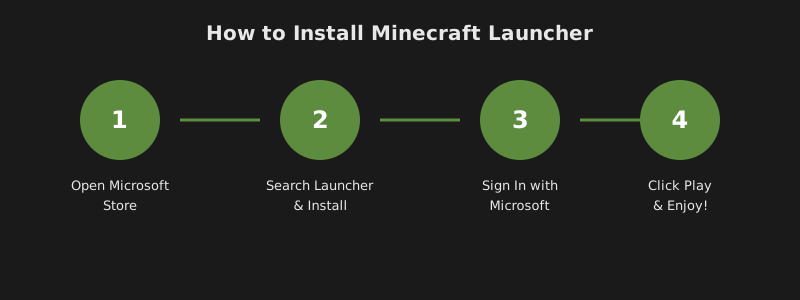
You only need the official launcher plus a Microsoft account that owns the edition you want to play. After install, the first Play download is the game itself. If Store asks you to buy a game you already paid for, you are signed into the wrong account, not missing a “special” launcher.
- Confirm ownership on the same Microsoft account you will use in Store, Xbox app, and the launcher. Mojang’s account pages on minecraft.net are the place to check purchases, not a third-party key site.
- Install from an official channel only. Windows: Store listing 9PGW18NPBZV5. Any OS: minecraft.net/download. Mojang documents both in How to download and install the Minecraft Launcher.
- Open Minecraft Launcher and sign in. Wait until the sidebar lists the games on that account. Empty library usually means the wrong Microsoft account, not a failed download.
- Select Java, Minecraft for Windows, Dungeons, or Legends. Press Play and let the first asset download finish. Closing the window mid-download is a common way to get a “broken install” that is actually incomplete files.
- On Java Edition, set a Java username if the launcher asks. That name is what servers display; it is not a second Mojang password.
Expected result: the launcher stays open, Play starts the selected edition, and you reach the game title screen. If install itself fails (Store pending, error code), use Troubleshooting installing the Minecraft Launcher before a full Windows reset.
Repair the Store app before a clean reinstall
Repair keeps worlds and usually takes minutes. Reset signs you out of the launcher app. Uninstall is the last option because people skip backups and then blame “the reinstall” for missing saves that were never copied.
- Windows Settings → Apps → Installed apps → Minecraft Launcher → Advanced options.
- Choose Repair. Open the launcher and sign in again if asked.
- If it still crashes on launch, choose Reset. You must sign in again. Java worlds in
%appdata%\.minecraftare not stored inside the Store package; they survive Reset unless you also deleted that folder. - In Microsoft Store, open Library and get updates for Store, Xbox, Gaming Services, and the launcher.
Back up worlds before you uninstall
Java Edition worlds live under %appdata%\.minecraft\saves on Windows, not inside the Store package. Uninstalling the launcher does not always delete that folder, but a “clean” folder delete during troubleshooting will. Copy first.
saves/is the worlds. Copy the whole folder, not one screenshot.mods/,resourcepacks/, andshaderpacks/if you use them.screenshots/andoptions.txtif you care about settings.- Bedrock / Minecraft for Windows worlds are not in the Java folder. Export them from the in-game world list or copy the Bedrock com.mojang worlds folder if you already know that path. If you are not sure, export from the game UI before you reset the Bedrock app.
Clean reinstall (Windows)
Use this when Repair and Reset fail, or when two launchers fight each other. Do not delete .minecraft unless you have a copy.
- Copy
%appdata%\.minecraftto a folder on another drive or a zip you can open without the launcher. - Settings → Apps → Minecraft Launcher → Uninstall. If a second “Minecraft Launcher” by Mojang remains, that is likely the old Unified Launcher; remove it in the next section.
- Only if Store reinstall still fails after a reboot, remove leftover package data under
%localappdata%\Packages\for the Minecraft Launcher package. Wrong package deletion can remove Bedrock data. If you cannot identify the package name, skip this step and use Store repair articles instead. - Install again from Store or minecraft.net. Sign in with the owning account. Confirm Play works before you copy mods back.
- If worlds vanished from the list, copy
savesback into%appdata%\.minecraft\saveswhile the game is closed.
Old Unified Launcher still installed
Windows 10 and 11 can have the current Minecraft Launcher for Windows and the older Minecraft Unified Launcher at once. Mojang’s help (summarized on the Minecraft Wiki) says to uninstall the old one so you are not launching the wrong app.
- Start → type Add or remove programs.
- Search Minecraft Launcher. The old Unified Launcher listing shows Mojang under the name (Wiki wording of the official article).
- Uninstall that entry. Then open the Store / Windows launcher and confirm it still signs in.
- Mods tied to the old install path may need to be copied into the current Java directory. Check your mod loader’s own docs; we will not guess a Forge version for you.
Licenses stay on the Microsoft account. You do not buy Java again because you uninstalled a launcher.
How you know it worked
- One launcher icon opens the current UI with game tabs.
- The account email matches the purchase account.
- Play starts the edition and you can load a world or the title screen.
- If ownership errors remain, that is unable to verify products, not a missing installer.